

Choose your backup method
urble currently offers two ways to back up your wallet:
Encrypted cloud backup
urble can encrypt your wallet backup and store it in your Google Drive. You can protect the backup using either a passkey or a password.
This is the more convenient option because you do not need to write down your 24-word recovery phrase, and restoring your wallet is usually quicker.
To restore your wallet later, you will need:
- Access to the Google account containing the backup
- The passkey or password used to protect it
Make sure that you can access the passkey or password from another device. urble cannot reset or recover it for you.
Manual recovery phrase backup
urble can display your 24-word recovery phrase so that you can write it down and store it yourself.
Write the words exactly as shown and in the correct order. Store the backup somewhere secure, private and protected from damage.
Important precautions:
- Do not take a screenshot or photograph of your recovery phrase.
- Do not save it in an email, chat, note or cloud document.
- Never share it with urble, Brick Towers, DFX or anyone claiming to provide support.
- Only enter it into the official urble app when you are intentionally restoring your wallet.
- Consider a fire-resistant or water-resistant backup for larger amounts.
A second copy in a separate secure location can protect against physical loss. However, every additional copy must also be protected against theft.
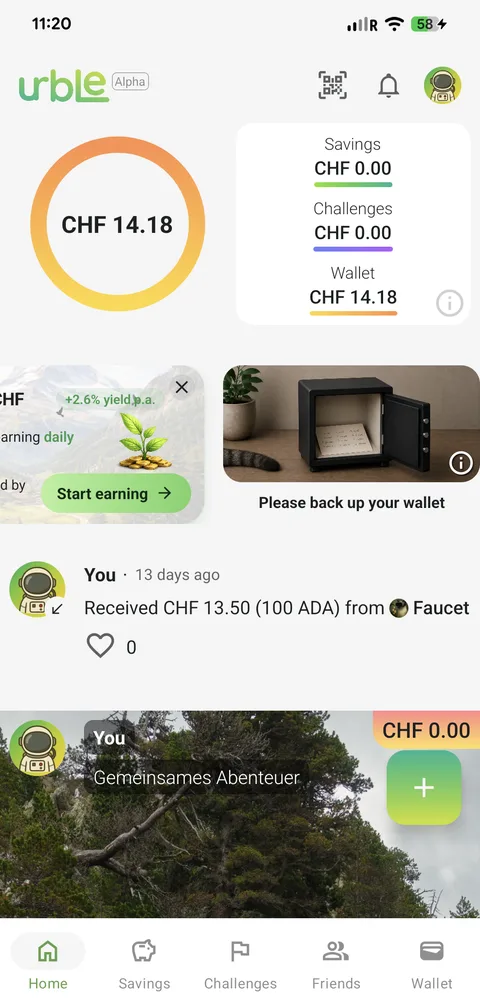
Whichever method you choose, completing at least one backup is essential. Until you do, urble will display a Please back up your wallet reminder on the home screen.
1. Start your backup
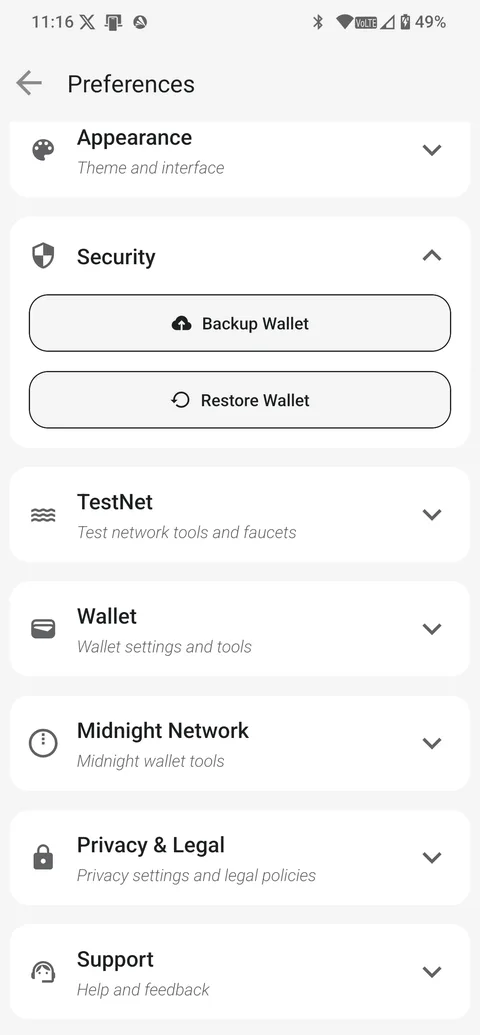
Open urble and go to:
Preferences → Security → Backup Wallet
You can also tap the Please back up your wallet reminder on the home screen. Both options take you to the same backup process.
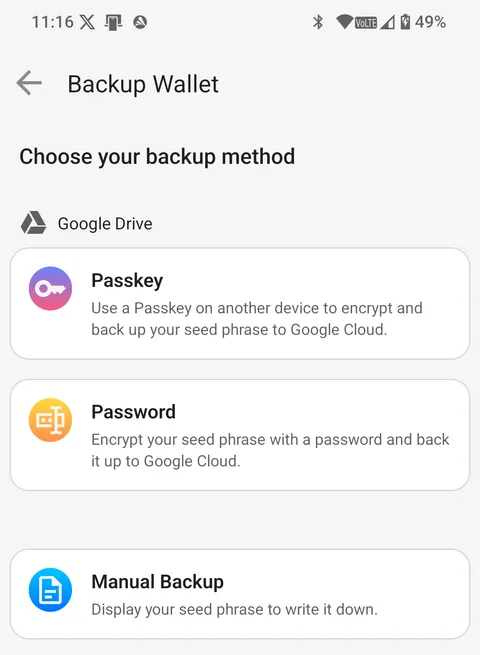
2. Choose your backup method
Select one of the available methods:
- Passkey
- Password
- Manual Backup
Passkey and Password create an encrypted backup in Google Drive.
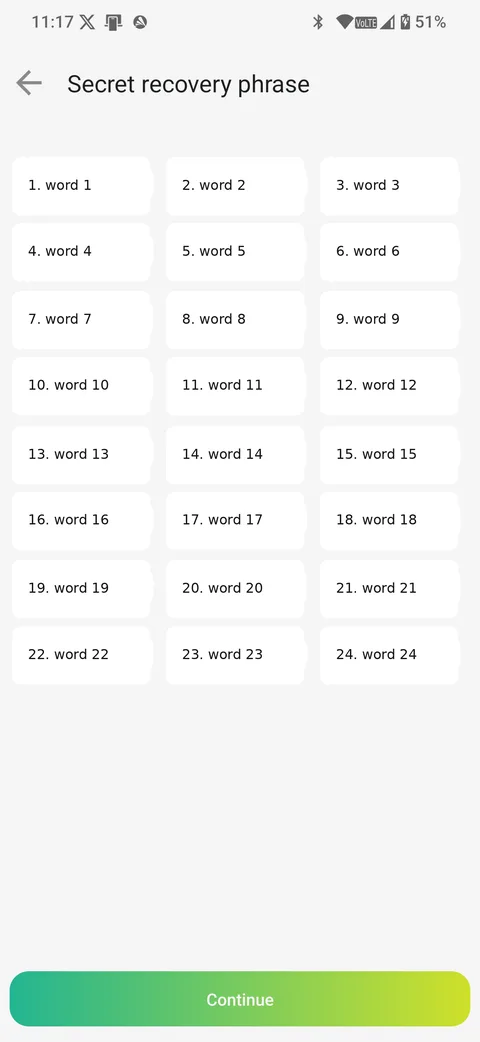
Manual Backup displays your 24-word recovery phrase. The words are hidden by default. Follow the instructions in the app to reveal and record them privately.
Before continuing, make sure that nobody can see or record your screen.
3. Confirm your backup
Follow the confirmation steps shown in urble.
For a manual backup, you may be asked to select or enter certain words from your recovery phrase. This helps confirm that you recorded the words correctly and in the correct order.
For a cloud backup, wait until urble confirms that the encrypted backup has been completed successfully.
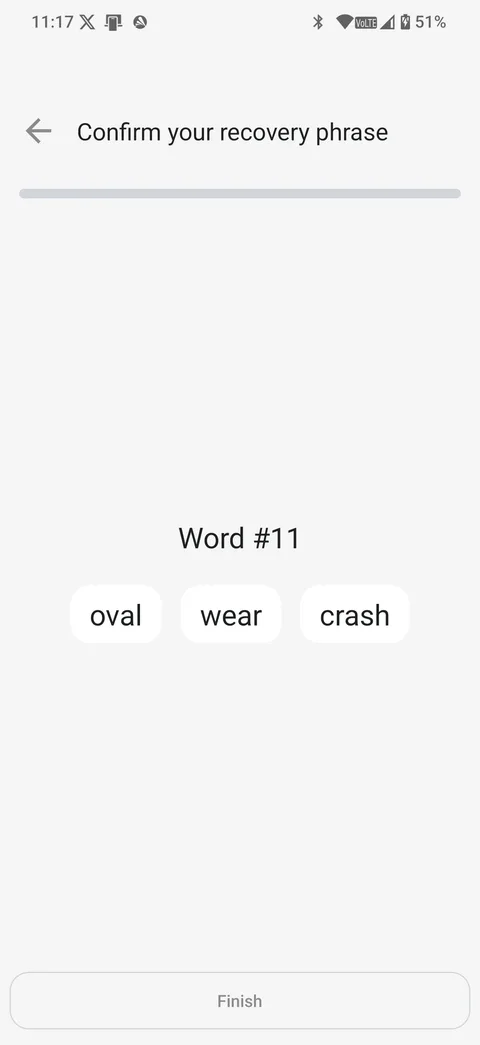
Once the process is complete, the Please back up your wallet reminder will disappear from the home screen.
How to restore your wallet
You can restore your wallet when moving to a new device, reinstalling urble or recovering from a lost or damaged phone.
Only restore your wallet in the official urble app downloaded from a trusted app store.
1. Open the restore options
Install and open urble. Complete the initial app setup if prompted, then go to:
Preferences → Security → Restore Wallet
Depending on the current app version, you may need to complete the initial onboarding process before the restore option becomes available.
2. Select your restore method
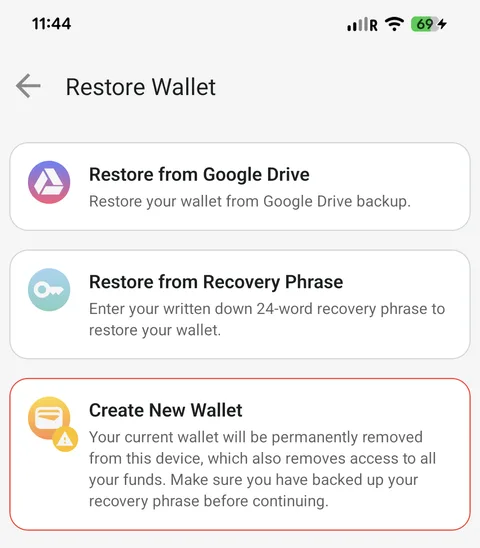
Choose the method that matches your backup.
Restore from Google Drive
Select the encrypted cloud backup and unlock it using the same passkey or password used when the backup was created.
You will also need access to the Google account containing the backup.
Restore using your recovery phrase
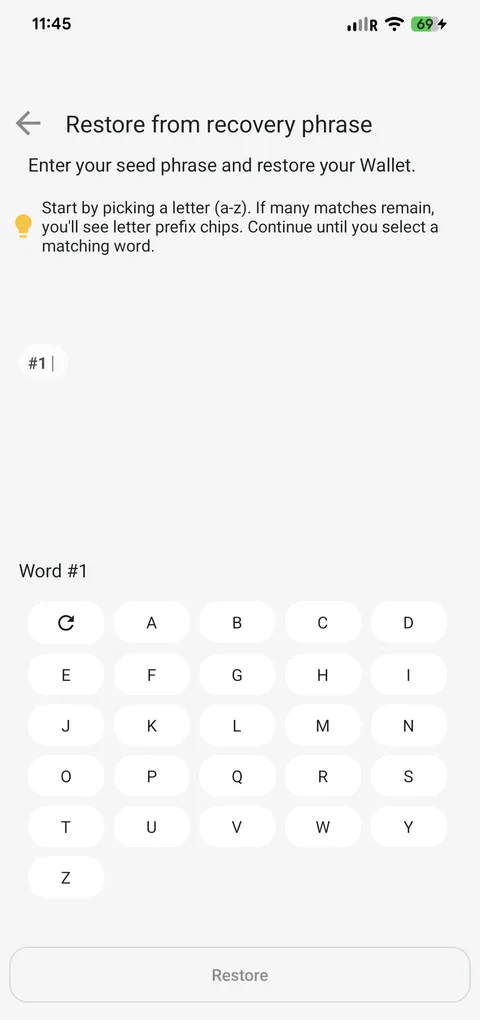
Select the manual recovery option and enter all 24 words in the exact order in which they were originally shown.
urble guides you through the process and helps reduce spelling errors while you enter each word.
3. Allow the wallet to synchronise
Once your recovery information has been accepted, urble restores access to your wallet and the assets controlled by it.
Balances, assets and transaction history may take a short time to appear while the app synchronises with the relevant blockchain networks.
Restoring your wallet restores access to the assets controlled by its keys. Some app-specific preferences or account information may need to be configured separately.
Creating or replacing a wallet
Creating a new wallet is different from restoring an existing one.
If you replace your current wallet without first creating a working backup, you may permanently lose access to the assets controlled by the previous wallet. The assets remain on the blockchain, but you will no longer be able to access them without the original recovery phrase or cloud backup.
Only create or replace a wallet after confirming that your existing wallet has been backed up correctly.
Protect yourself from scams
urble, Brick Towers and their partners will never ask you to send them your recovery phrase, cloud-backup password or passkey.
Support can help you navigate the app or troubleshoot an error, but it cannot:
- View your recovery phrase
- Recover a lost recovery phrase
- Reset your cloud-backup password
- Approve a transaction for you
- Restore your wallet without a valid backup
If anyone asks for your recovery phrase or backup credentials, stop immediately and contact urble through an official support channel.
One thing we can't stress enough
Your backup is the only reliable way to regain access to a self-custodial wallet if your device is lost, damaged or replaced.
Take a few minutes to complete it before adding meaningful funds. Then store your backup somewhere secure, private and accessible when you genuinely need it.
Learn more: Self-Custody in 2025: Safer Wallet Setups Without the Headache.