Adding funds to your urble wallet
Your wallet can receive funds two ways.
Option 1: Receive crypto from another wallet
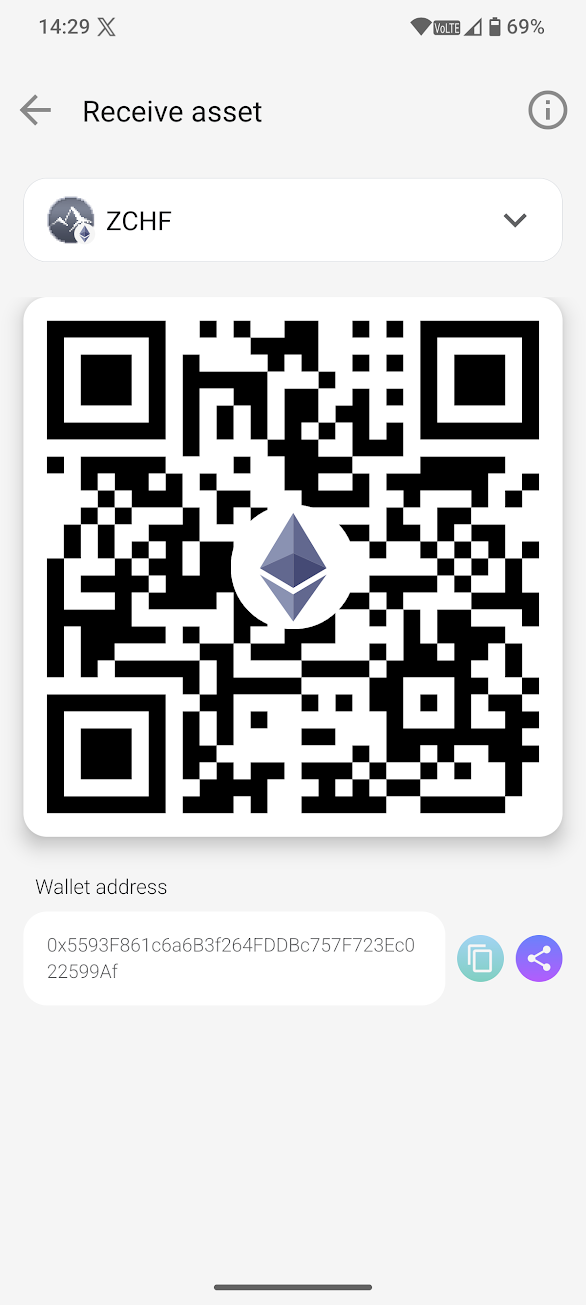
If you already hold BTC, ETH, ADA, or a supported stablecoin (like ZCHF, USDC, or EURC on the Ethereum network) in another wallet, you can send it directly on-chain. Open Receive in your urble wallet, pick the asset/network, and either share the address or let the sender scan your QR code. Double-check the network matches — sending an unsupported asset or using the wrong network can result in permanent loss of funds.
Option 2: Add funds by bank transfer:
To convert CHF or EUR from your bank account into a supported digital asset, select “Receive via bank account.” Depending on the selected asset and funding route, your transfer will be processed by one of urble’s integrated exchange partners, currently DFX or Mt Pelerin. The app will show the applicable provider and the exact bank-transfer instructions to use.
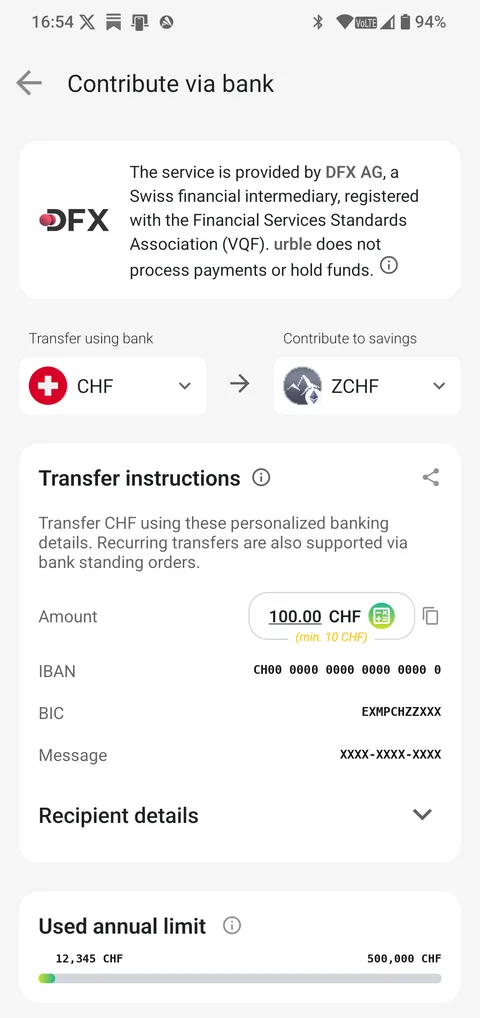
The instructions may include the beneficiary, amount, IBAN, BIC and a personal message or reference. Always use the exact details shown in the app, as they may differ depending on the provider, currency and selected asset.
Identity verification is required first – see “How to Complete Identity Verification (KYC) with Our Partners” if you haven’t completed it yet. The applicable fees are shown in the app before you confirm the transaction.
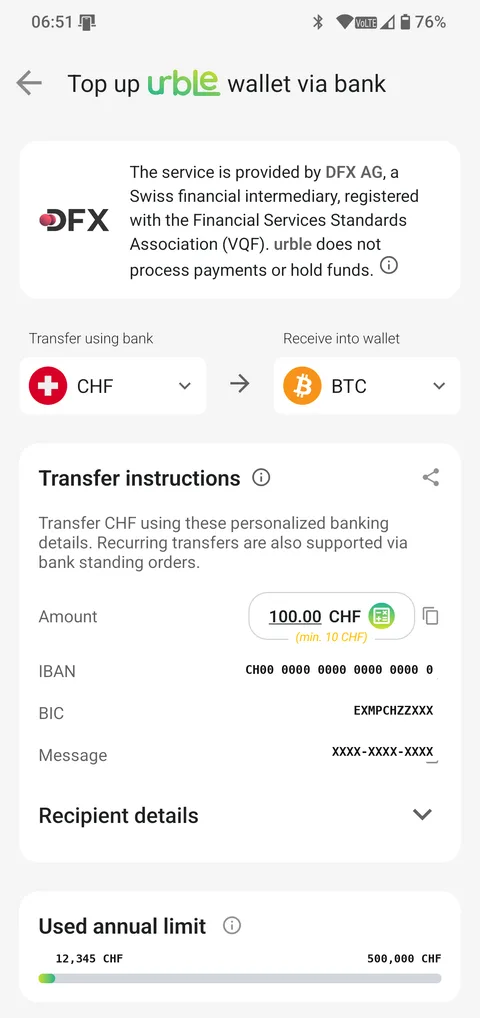
One detail that can trip people up: some transfer routes require a specific Message or reference so the incoming payment can be assigned correctly. If one is shown, copy it exactly into the corresponding field in your eBanking. Banks may label this field Message, Purpose of Payment, Reference or Note to Recipient. If no message or reference is shown, follow the transfer instructions displayed in the app without adding one yourself.
Where a Message is required, do not confuse it with the structured reference-number field used for Swiss QR-bill payments. Always enter it in the field indicated by your bank for freely editable payment information.
Setting up a bank transfer as a standing order
Eligible bank-transfer details can also be used to create a recurring standing order in your eBanking. Copy the beneficiary, IBAN, BIC and any required message or reference exactly as displayed in the app. Because these details may vary by provider, currency, asset or destination, do not reuse transfer instructions for another asset or savings plan. If the details shown in urble change, update your standing order accordingly.
Contributing directly to a savings plan
Beyond the main wallet, each savings plan you set up has its own funding options — useful if you want contributions to go straight into a specific goal rather than sitting in your wallet first. From a savings plan, select your contribution method:
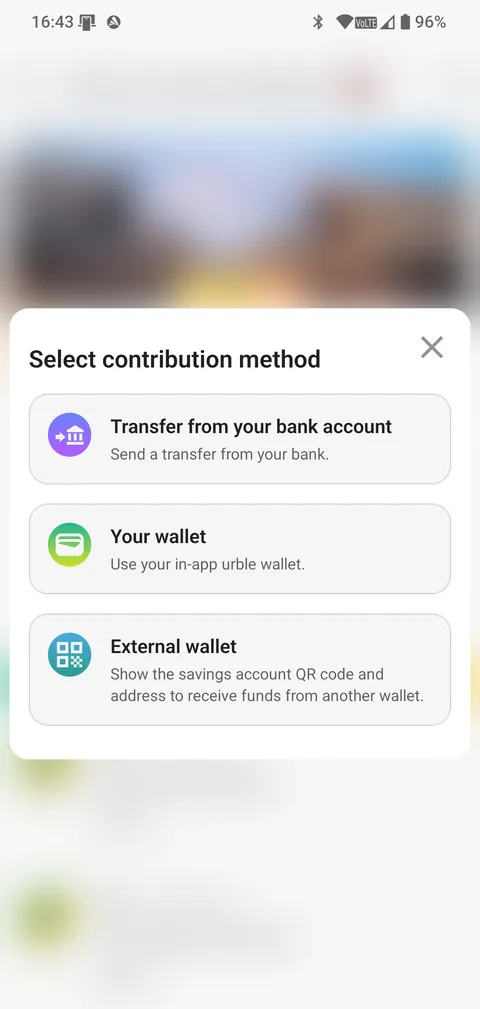
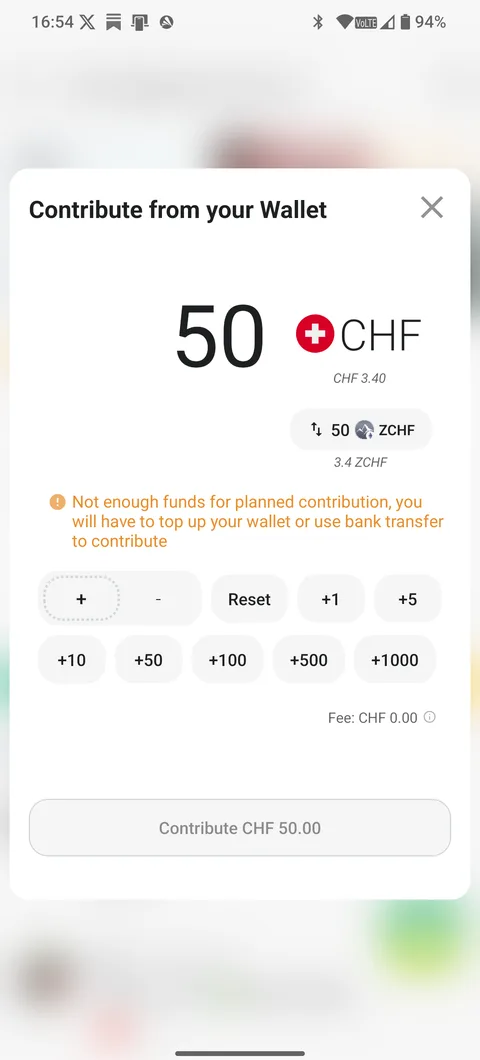
From your urble wallet — if you already have funds in your wallet, contribute directly from there. There's no fee for this (except for blockchain transaction fees). If your wallet doesn't have enough, urble tells you and points you to top up or use a bank transfer instead.
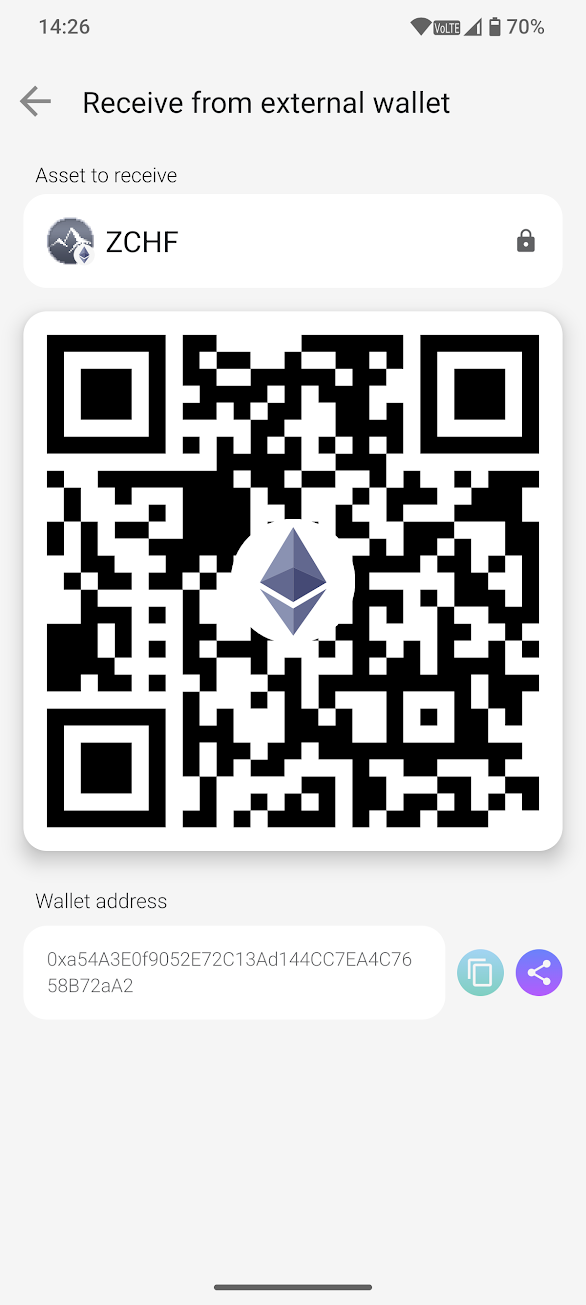
From an external wallet — same idea as the main wallet's crypto receive, but scoped to this specific savings plan: you get a dedicated QR code and address, and the plan only accepts the asset it was set up with (for example, a ZCHF stable-yield plan only accepts ZCHF).
Via bank transfer – select this option to receive the applicable transfer instructions for the savings plan. Depending on the provider and funding route, the instructions may include a personal IBAN, a unique message or another reference that routes the funds to the correct plan. Always use the complete set of details shown for that specific savings plan. Do not reuse them for another plan or for your general wallet.
Standing orders into a savings plan
If you want to contribute regularly, use the bank details shown for that savings plan to create a standing order in your eBanking. Set the frequency to match your intended contribution schedule and ensure that all details – including any required message or reference – exactly match the instructions displayed in the app.
Confirming your money arrived
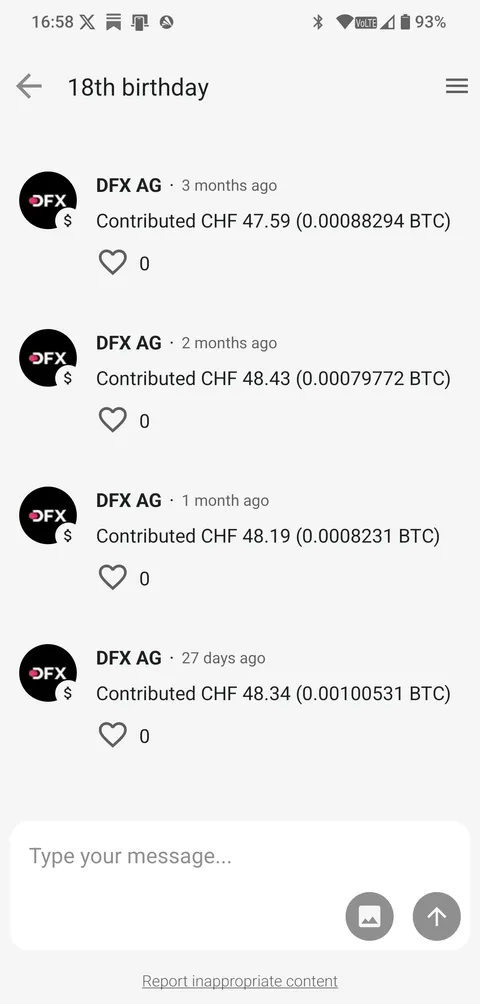
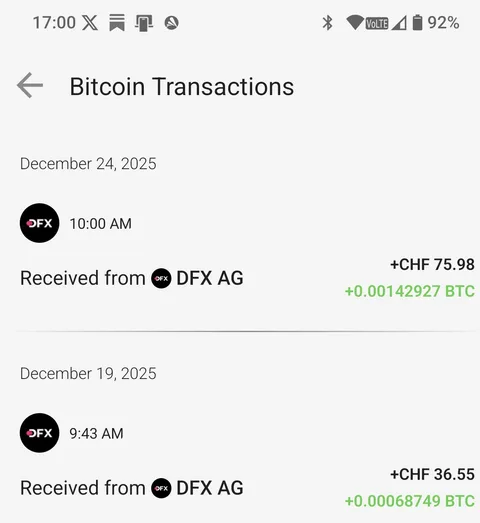
Once the transfer has been processed, you may receive a confirmation directly from the exchange partner. You can also check directly in the app: a savings plan shows successful contributions right in its activity feed, and your wallet shows each incoming transaction under the relevant asset's transaction history.